


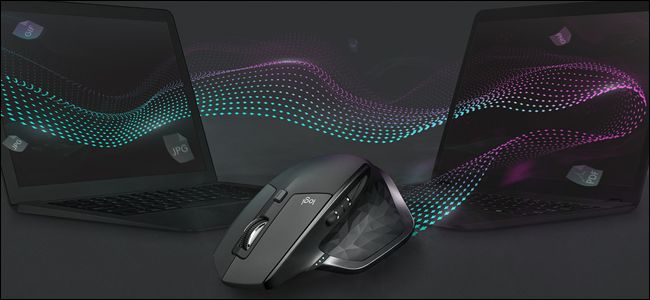
Logitech’s newest mice and keyboards have an interesting additional feature called Flow. Flow lets you use a mouse and keyboard across multiple PCs, very much like Synergy or Mouse Without Borders, but with a much simpler setup process.
Logitech Flow isn’t a separate program—you’ll have to dive into the configuration application in order to set everything up.
What You’ll Need

For this process, you’ll need:
- Two or more PCs, running either Windows or macOS. They need to be on the same local network.
- A compatible Logitech mouse. At the time of writing, the compatible models are the MX Master 2S, MX Anywhere 2S, M585, and M720 Triathlon mice. For seamless keyboard switching, you’ll also need a compatible Logitech keyboard, which includes the K780, K380, K375s, and MK 850 keyboards. (You do not need a compatible Logitech keyboard though, just a mouse—see the last section of this guide for more info.)
- Logitech Unifying USB dongles for all your devices, or Bluetooth in the connected PCs. Mixing and matching is fine.
If your devices aren’t compatible, you’ll need to use something like Synergy instead—otherwise, read on.
Step One: Install Logitech Options
If you haven’t already, download and install Logitech Options from this link on all the computers you wish to connect via Flow. It’s pretty handy software even without this feature, allowing for gesture control and custom key bindings. Just download the installer and follow the on-screen instructions—in Windows double-click the install file, in macOS drag it into the Applications folder.
Once the program is installed, it should detect any compatible Logitech products automatically.
(Note that just because a mouse or keyboard appears in Logitech Options doesn’t mean it’s compatible with Flow.) You’ll need to use your mouse or keyboard’s multi-device functionality to pair it with all the computers, one at a time.Step Two: Pair Your Mice and Keyboards
To add a device to Logitech Options manually, use…
The post How to Use Logitech Flow for Mice and Keyboards Across Multiple Computers appeared first on FeedBox.