


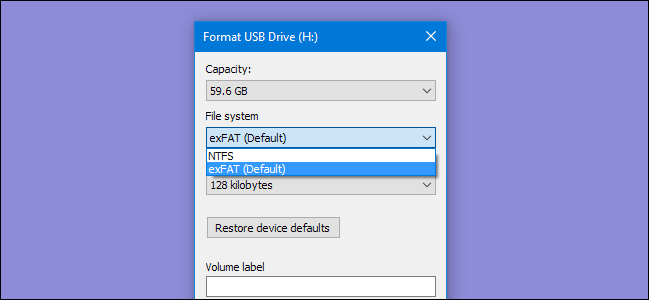
For whatever reason, the option to format USB drives larger than 32GB with the FAT32 file system isn’t present in the regular Windows format tool. Here’s how to get around that.
FAT32 is a solid file system for external drives, so long as you don’t plan to use files over 4GB in size.
If you do need those larger file sizes, you’ll need to stick with something like NTFS or exFAT. The advantage to using FAT32 is portability. Every major operating system and most devices support it, making it great for drives you need to access from different systems. Specifications put out by manufacturers on file systems as they pertain to drive size created the myth that FAT32 can only be used to format drives between 2 GB and 32 GB, and that is likely why native tools on Windows—and other systems—have that limit. The truth is that FAT32 has a theoretical volume size limit of 16 TB, with a current practical limit of about 8 TB—plenty for most USB drives.We’re going to show you two ways to format larger USB drives with FAT32. One method uses PowerShell (or the Command Prompt), the other a free, third-party tool. First, however, we’ll take a brief look at how to format 32GB and smaller drives using the regular formatting tool built into Windows.
Format Large USB Drives with FAT32 by Using FAT32 Format
The easiest way to format larger USB drives with FAT32—if you’re willing to download a free, third party app—is to use the…
The post How to Format USB Drives Larger Than 32GB With FAT32 on Windows appeared first on FeedBox.