


Author: Josh Hendrickson / Source: How-To Geek
Microsoft released testing builds of Edge Chromium yesterday, and it includes a surprising number of features for such an early build. Microsoft says some features, like dark mode, are coming later—but you can try them now. Here’s how.
Just Like Chrome Pages, But It’s Edge Pages
Microsoft’s decision to revamp the Edge browser using Chromium came with many promises.
Support for Chrome extensions, better touch support, and battery life for Chromium are just a few examples. One that seems obvious in retrospect is Edge gaining experimental flags.Chrome’s experimental flags is a subset of the pages feature that you can use to try upcoming unfinished features. And with Microsoft’s Edge Chromium you’ll see the same concept in play. The only difference is instead of typing chrome:// to get started, you’ll use edge:// instead.
The experiments page contains three particularly interesting settings to enable: dark mode, grouped tabs, and smooth scrolling.
How to Turn on Dark Mode
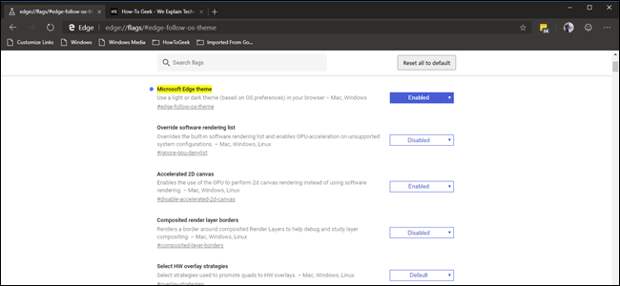
We’re assuming you’ve already installed and run through set up of Edge Chromium. To start, you’ll open a new tab in and type edge://flags then hit enter.

Next, you can either search for the flag you want (if you know the name) or scroll to it. To turn on dark mode, look for the “Microsoft Edge Theme” option, and change the dropdown from Default to Enabled.
The post Microsoft’s Chromium-Powered Edge Has a Dark Mode, Here’s How to Enable It appeared first on FeedBox.