


Author: Brady Gavin / Source: howtogeek.com
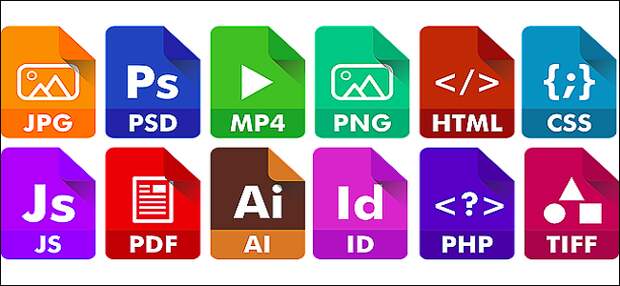
A file extension, or filename extension, is a suffix at the end of a computer file. It comes after the period, and is usually two-four characters long. If you’ve ever opened a document or viewed a picture, you’ve probably noticed these letters at the end of your file.
File extensions are used by the operating system to identify what apps are associated with what file types—in other words, what app opens when you double-click the file. For example, a file named “awesome_picture.jpg” has the “jpg” file extension. When you open that file in Windows, for example, the operating system looks for whatever app is associated with JPG files, opens that app, and loads the file.
What Types Of Extensions Are There?
There are many different types of file extensions—way too many to list in an article—but here a few examples of common file extensions you might see floating around on your computer:
- DOC/DOCX: A Microsoft Word document. DOC was the original extension used for Word documents, but Microsoft changed the format when Word 2007 debuted. Word documents are now based on the XML format, hence the addition of the “X” at the end of the extension.
- XLS/XLSX: – A Microsoft Excel spreadsheet.
- PNG: Portable Network Graphics, a lossless image file format.
- HTM/HTML: The HyperText Markup Language format for creating web pages online.
- PDF: The Portable Document Format originated by Adobe, and used to maintain formatting in distributed documents.
- EXE: An executable format used for programs you can run.
And like we said, this is just a smattering of the file extensions out there. There are literally thousands.
It’s also important to be aware that there are file types out there that are inherently risky, and could be dangerous. Typically, these are executable files that can run certain types of code when you try to open them. Play it safe and don’t open files unless they come from a trusted source.
RELATED: 50+ File Extensions That Are Potentially Dangerous on Windows
What If I Don’t See File Extensions on My Files?
By default, Windows shows file extensions. For a while—in Windows 7, 8, and even 10—this was not true, but fortunately, they changed the default settings. We say fortunately because we feel showing file extensions is not only more helpful, but more secure. Without file extensions showing, it can be hard to tell whether that PDF file you’re looking at (for example) is really a PDF file and not some malicious executable file.
If file extensions are not showing for you in Windows, they’re easy enough to turn back on. In any File Explorer window, just head to View > Options > Change folder and search options. In the Folder Options window, on the View tab, disable the “Hide extensions for known file types” check box.

File extensions do not show up in macOS by default. The reason for this is that macOS doesn’t really use extensions the same way that Windows does (and we’ll talk about that more in the next section).
You can make macOS show file extensions, though, and it’s probably not a bad idea to do so. With Finder open, just head to Finder > Preferences > Advanced, and then enable the “Show all filename extensions” check box.

How Do macOS And Linux…
The post What Is A File Extension? appeared first on FeedBox.