


Author: Michael Crider / Source: howtogeek.com
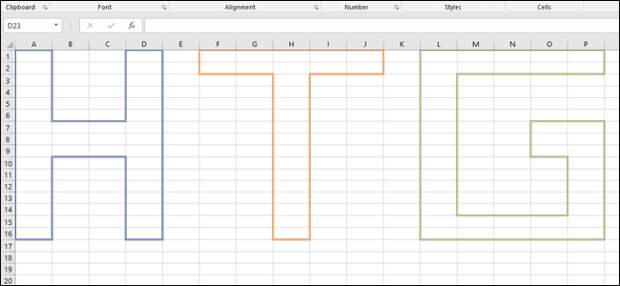
Excel spreadsheets can be hard to read at a glance, thanks to dense information and the grid formatting. Spending a little time on your spreadsheet to make it easier to read is a solid plus, starting with the borders around different cells.
Here’s how to adjust the border around individual cells, and around multiple cells at once.
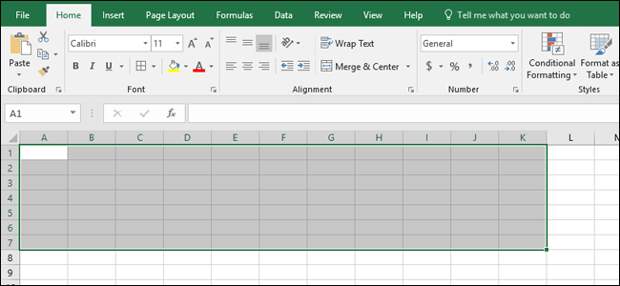
To select a single cell, simply click it. To select multiple cells at once, click on the first one and drag the cursor left or right. Or, you can click one in the top left cell you want to select, and then Shift-click the bottom right cell to select a whole block.
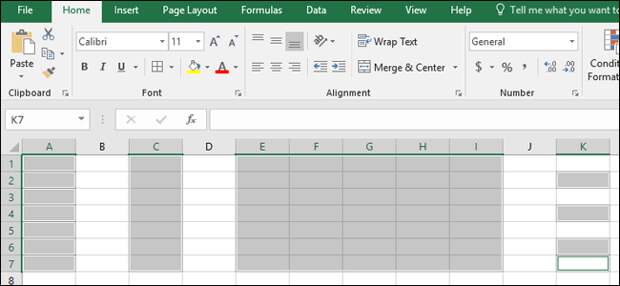
You can also select multiple cells in different columns or rows by holding down the Ctrl button while you click.
Now, on the “Home” tab on the Ribbon, you’ll see a “Font” section with controls for formatting text. You’ll also find a border button that looks like a window (a grid of four small boxes). Click that button to open the border menu.
The post How To Add and Change Cell Borders In Excel appeared first on FeedBox.