


Author: Harry Guinness / Source: howtogeek.com
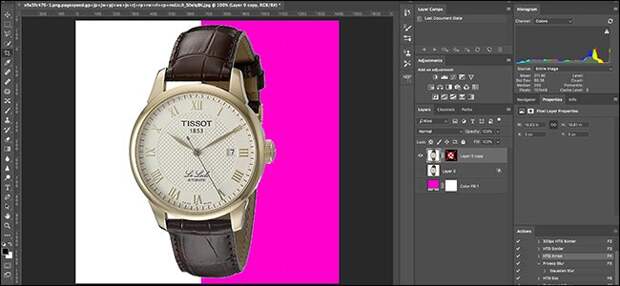
Cutting an object out from a white background can be a pain. Photoshop’s automated tools give uneven results in a lot of case. However, we do have a technique that, while not perfect, gives great results more than 90% of the time. More importantly, it’s nice and quick.
Setting Up the Document
Open the image from which you want to remove the white background from in Photoshop. I’m using this product photo of a Tissot Le Locle watch which was our sister site, Review Geek’s, pick for best affordable automatic gold watch.

Double click on the Background layer to unlock it.

Next, go to Layer > Duplicate Layer, and then click “OK” or use the keyboard shortcut Control-J (Command-J on a Mac).

Click on the little eye icon to turn visibility off for the top layer, in my case it’s “Layer 0 Copy” and everything is set up.

One optional step is to add a colored background to make things a little easier to see. I’m going to do it just to make the screenshots clearer.
Go to Layer > New Fill Layer > Solid Color, click “OK,” and then select a nice bright color. I’m going with this fetching pink.

Drag the Fill Layer to the bottom of the Layer stack, so it’s underneath everything, and you’re ready to go.

Creating the Outline
The first step is to get rid of all the white in the image. To do this we’re going to use Blend If, one of Photoshop’s more advanced features. Just follow the instructions and you’ll be fine.
Double-click on the original layer (Layer 0 in our example), to bring up the Layer Styles dialog.

The only thing we’re interested in here is the Blend If sliders.

Click on the white arrow on the right hand side of the top slider—“This Layer”—and drag it to the left. Instantly, a lot of the white will vanish.

This is obviously a rough correction, so we…
The post How to Remove Almost Any Image From a White Background In Two Quick Steps appeared first on FeedBox.