


Author: Oliver Haslam / Source: How-To Geek
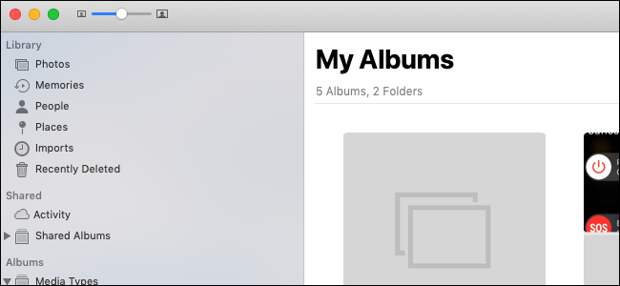
Apple’s Photos may not be perfect, but as somewhere to easily organize photos it’s unparalleled, especially If you’re living the iCloud Photo Library lifestyle. Smart Albums are great for that, but are you using them to their fullest?
Smart Albums are a massively under-utilized aspect of Photos, which is a shame because they make keeping a growing photo library in check easier than you might imagine.
Want to have all photos from a particular period in one place? How about all photos taken with a specific camera, on a specific day? All portrait images?You get the idea.
Here, we’re going to show you how to create your own Smart Album, and we’re going to give you a couple of ideas for how you can use them along the way, too.
How to Create a Smart Album
To start, open Photos and click “File” followed by ” New Smart Album.”

Next, give your new Smart Album a name and start to select the criteria that you want Photos to use when building the album.

If you have more than one rule configured, it’s important to select whether you want to have ‘Any” or “All” of them be matched before being added to the album. Selecting “All” will result in a smaller collection of images, whereas “Any” will require that only one or more of those rules be met for an image to be added to the album.
By selecting the drop-down menus, you can select which rules you wish to add, including those based on the type of photo, when it was taken, the keywords assigned, and more. There are a lot of different rules…
The post How to Automatically Sort Your Photos with Smart Albums on a Mac appeared first on FeedBox.