


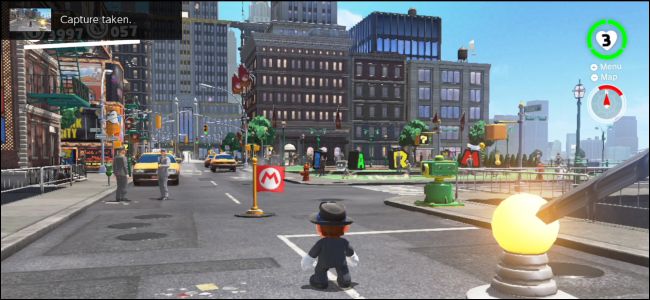
The Nintendo Switch has a dedicated button to take screenshots. It can now even record videos in some games, too. These screenshots and videos are saved to your Switch’s internal storage or a microSD card, and you can view them, move them around, and post them to Facebook or Twitter right from your Switch.
Or, of course, you can remove the microSD card and pop it into a PC, the way you would with a normal camera. Always be sure to shut down the Nintendo Switch before removing the microSD card. To do so, long-press the Power button located next to the volume controls and select Power Options > Power Off.
-

GRM® Document Storage Ad Secure & Fully Compliant Service.
Sign Up for Free Consultation Now!grmdocumentmanagement.com Learn more

How to Take a Screenshot
The Nintendo Switch’s controllers have a dedicated “Capture” button that works in any game or system menu.
On the Joy-Con controllers, look at the bottom of the left Joy-Con. You’ll see a square button with a circle inside it. Press the button to take a screenshot. You’ll hear a sound and you’ll see a “Capture Taken” notification on your screen.
On the Nintendo Switch Pro Controller, look at the middle of the controller. You’ll see the same square button with a circle inside it to the left of the Home button. Press this button to take a screenshot. You’ll hear the same sound and see the same “Capture Taken” notification.
How to Record a Video
With the Nintendo Switch OS 4.0 update, Nintendo added the ability to record gameplay to the Nintendo Switch.
At launch, this only works with Legend of Zelda: Breath of the Wild, Super Mario Odyssey, Mario Kart 8 Deluxe, ARMS, and Splatoon 2. More games will add support for this feature in the future.To record gameplay, you use the same Capture button you use to record screenshots. Just press the button and hold it down instead of pressing it normally. Your Nintendo Switch will automatically capture and save a video of the last 30 seconds of your gameplay You’ll see a “Saving” notification while it’s saving the clip.
How to View Screenshots and Videos
To view all your screenshots and videos, head to your Nintendo Switch’s home screen, select the “Album” icon, and press the A button on your controller to open it.
The Album view shows all your screenshots and videos, whether they’re stored on your console’s internal memory or on a microSD card. Select a screenshot or video and press A to view it.
If you like, you can select “Filter” or press Y and filter the Library to show only screenshots, only videos, content from a specific game, media stored on the internal system memory, or media stored on the microSD card.
How to Share a Screenshot or Video…
The post How to Take Screenshots and Videos on Your Nintendo Switch appeared first on FeedBox.