


Author: Craig Lloyd / Source: howtogeek.com
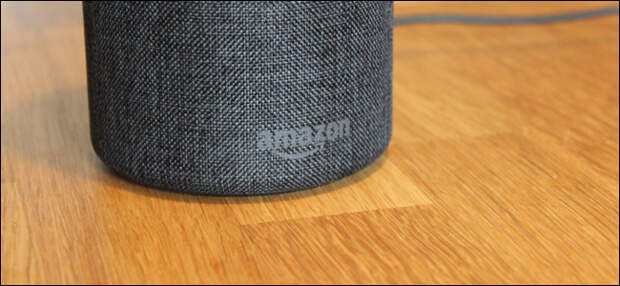
So you just got an Amazon Echo, either from the recent sales or the holidays. Let’s take a look at how to set it up and some useful things you can task your Echo with.
| Start Download – View PDF | |
| |
| Merge & Convert Files into PDFs w/ EasyPDFCombine – Free! | |
| EasyPDFCombine | |
| Learn more |
What Is the Amazon Echo?
Simply put, the Echo is a voice-controlled virtual assistant that lets you control smarthome devices, check the weather, play music, get news updates, and more.
RELATED: Which Amazon Echo Should I Buy? Echo vs. Dot vs. Show vs. Plus and More
There are a handful of different models that you can choose from, the main one being the $99 version which comes with a decent speaker for the price. There’s also the cheaper $50 Echo Dot on the lower end (which comes with laptop-quality sound in a smaller package), and on the higher end is the $150 Echo Plus, which has a built-in smarthome hub and a slightly better speaker than the $99 model. You can even get Echos that have screens on them, like the Echo Show and Echo Spot.
Before we set the Echo up and play around with it, though, let’s take a quick tour of the physical device and its buttons. In this guide, we’ll be setting up the new $99 model.

As far as physical manipulation goes, there are three things on the Echo you can mess with: the microphone button (which toggles the listening feature on and off), the action button (which, when tapped, summons Alexa without having to say anything), and the volume buttons.
On the Echo Plus (and the previous-generation Echos) there’s a volume ring around the edge, rather than volume buttons.RELATED: How to Get the Most Out of Your Amazon Echo
Other than the buttons, there’s also an audio-out port on all the latest Echo devices (next to the power port at the bottom) so that you can plug a more-powerful speaker into them.
With the brief overview of the physical side of things out of the way, let’s take a look at how to set up your Echo.
Setting Up Your Echo
To help minimize Alexa belting out instructions at you, the first step (before you even unpack and plug the Echo in) is to grab the Amazon Alexa app for your phone or tablet (iOS/Android). Once you have the app downloaded, hold off on launching it right now.

Plug in your Amazon Echo. The indicator ring around the top will flash blue then switch to a rotating orange color (as shown above). This indicates it’s ready to be configured. If you miss this window and it starts complaining (and the ring turns purple), hold down the action button (the button opposite the mute button) for about five seconds until the ring turns orange again.
Once the Echo is fully powered up and in the orange configuration mode, pull out your smarpthone and open up the Wi-Fi settings. Like many smarthome products, the Echo requires you to connect directly to it during the configuration process in order to set it up.

As shown above, select the Echo’s Wi-Fi connection, which will be something like “Amazon-53N” or some other number and letter combo, and connect to it.
Then, you can launch the Alexa app to begin the setup and you should see this screen:

Select which type of Echo you’re setting up. The app should jump right into the configuration process, but if it doesn’t, just tap on the menu icon (the three bars in the top-left corner of the app) and select Settings. From there, you can select one of two things: if you personally purchased the Echo on your…
The post How to Set Up and Configure Your Amazon Echo appeared first on FeedBox.