


Author: Chris Hoffman / Source: howtogeek.com
Your Mac keeps system logs, which can help diagnose and troubleshoot problems with macOS and your installed applications. These logs are stored as plain-text log files on your Mac’s system drive, and macOS also includes an app for viewing them.
| Visualize your Workflow.
Deliver Continuously and Reliably | |
| |
| Reduce Multitasking & Improve Efficiency with Kanban. Signup now for a … | |
| SwiftKanban | |
| Learn more |
View System Logs in the Console App
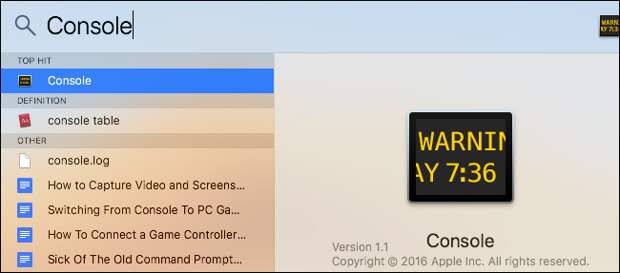
To view your Mac system logs, launch the Console app. You can launch it with Spotlight search by pressing Command+Space, typing “Console,” and then pressing Enter. You’ll also find it at Finder > Applications > Utilities > Console.
The Console app, also known as Console.app, is like a Windows Event Viewer for Mac.
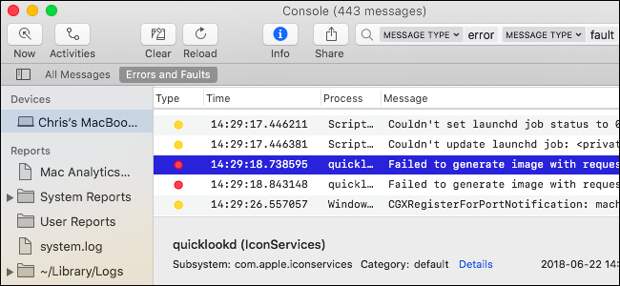
By default, you’ll see a list of console messages from your current Mac. You can click “Errors and Faults” in the toolbar to see only error messages, if you like. You can also use the search box to search for a type of error message you want to see.
More logs are available under Reports. To see application crash and freeze logs, click either “System Reports” for system applications or “User Reports” for user applications. You’ll see a variety of logs with file extensions like .crash, .diag, and .spin. Click them to view them in the Info pane.
If…
The post How to View the System Log on a Mac appeared first on FeedBox.