


Author: Cameron Summerson / Source: How-To Geek
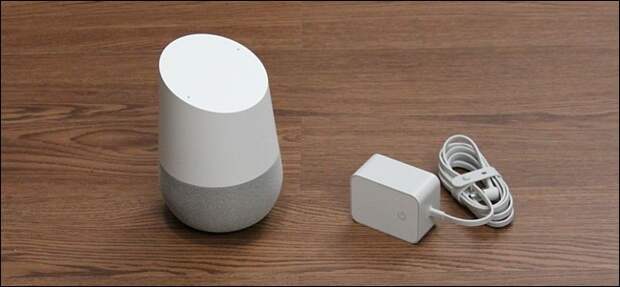
So you scored a Google Home for Christmas. That’s awesome because this is a killer little smart speaker that can do a lot of different things—in fact, it can be a little overwhelming. The good news is that we’ve got you covered. Here are some ideas on where to get started with your new Home.
Set Up Your New Google Home
First things first: you have to set that bad boy up because it’s basically useless in the box. But before we get into that, I want to take a quick minute to address something that is constantly on users’ minds when they get an always-listening device like Google Home: it’s not spying on everything you say. It only listens for the hotword (“OK Google” or “Hey Google”), but that’s it. Nothing is recorded or transmitted back to Google until it hears those words. I promise.
With that out of the way, let’s get your new speaker set up. The first thing you’ll want to do is plug your Home up and download the Google Home app for iOS or Android.
Launch it and run through the tutorial—it’s all pretty straightforward. Once the phone finds the new Home, it will let you know. If it finds other devices (like smart lights or plugs), it will show those, too. Select your new Home device and hit “Next.” It’ll then play a sound on your new Home to make sure it’s connected to the right one and you’ll confirm.


From there, you’ll establish a room and connect the Home to Wi-Fi. After it’s all connected, you’ll sign in to your Google account—assuming you’ve set up Google Assistant on your phone, your voice settings will automatically be imported.
That’s cool.

If this is the first time you’re setting up Google Assistant, you’ll be able to teach it to recognize your voice. If you’ve already set it up on another device, it can pull the voice model from there for you.


Next, the Google Home app will detect if you have certain music apps installed and offer to set them up for you. Here, it discovered I use Spotify. It will then offer to set up video services for you.


Finally, you’ll get a chance to set the location where the Home will be used, review all your settings, and run through a quick tutorial on how to use Home.


With all the simple stuff out of the way, you’re ready to really start using your new Google Home.
Add Another Account
If you plan on sharing your Home with someone else in the house (or multiple people, even), you’ll want to add everyone else’s Google account. Why? Because the Google Assistant will be able to differentiate people by their voices, therefore offering personalized results.
For example, if I tell my Google Home to add an event to my calendar, it will match my voice to my account and add it only to my personal calendar, not my wife’s. It works the same way for her.
To add a second (or third, fourth, etc.) account to an existing Google Home, the person who you’d like to add will need to install the Home app on their phone. When they launch it and sign in,…
The post So You Just Got a Google Home. Now What? appeared first on FeedBox.