


Author: Chris Hoffman / Source: howtogeek.com
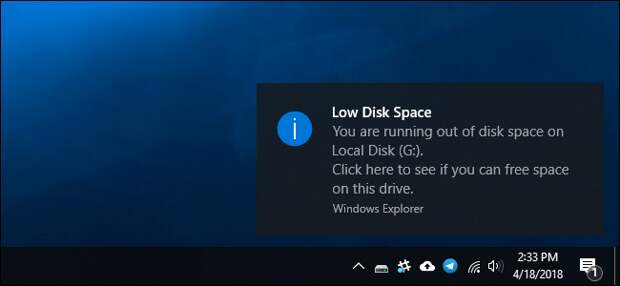
Windows displays “Low Disk Space” notifications whenever any partition on your computer has less than 200 MB of space remaining. Here’s how to get rid of the notifications, even if you can’t free up the space.
What You Need to Know
If this warning is about your system drive, you should pay attention to it and free up some space.
Windows doesn’t function well if your system drive is completely full. You need some free space, although no one can say exactly how much. Many applications won’t run properly and will crash if you have a completely full drive. At any rate, if you’re seeing the warning, you have almost no space left and should probably free some up.RELATED: 7 Ways To Free Up Hard Disk Space On Windows
However, in some cases, you may see this warning about other, non-system drives. For example, if a recovery partition has a drive letter assigned to it and is almost full, you may see this warning. We recommend hiding the recovery partition if it becomes visible.
If you have a full data drive and you’re not worried about potential problems or you just don’t want to see this warning, you can disable these notifications.
Disable the Warning by Editing the Registry
You can only disable these low disk space messages by changing a setting in the Windows Registry. This is a system-wide change, so Windows won’t warn you about low disk space on any of your drives after you change it.
The below registry hack works on Windows 7, Windows 8, and Windows 10.
Here’s our standard warning: The Registry Editor is a powerful tool and misusing…
The post How to Disable the “Low Disk Space” Warning on Windows appeared first on FeedBox.