


Author: Cameron Summerson / Source: howtogeek.com
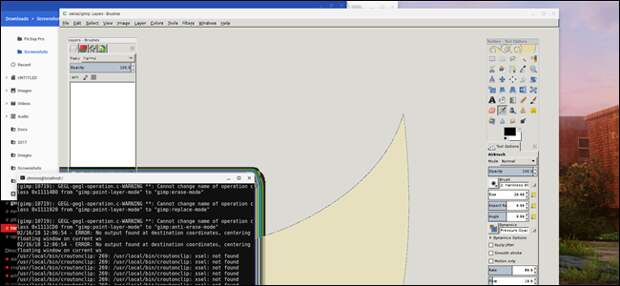
If you’re looking to get a little more versatility out of your Chromebook, installing Crouton to get a full Linux desktop is a great way to do it. But you don’t have to access the full desktop every time you want to run a Linux app—you can do it right from Chrome OS, too.
|
What You’ll Need
Before we get started, here are a few things you’ll need first:
- You’ll need a Crouton installation to make this happen, so check out that guide first if you don’t already.
- You’ll also need the Crouton integration Chrome extension. Here’s a guide if you need help setting that up.
- While not required, I prefer running Crosh in its own window. You can do that by using the Crosh Window extension. This also requires the Secure Shell extension before it will work.
Got all that? Great. Let’s get started.
Step One: Install Xiwi
If you have Crouton set up to run in a separate window or Chrome tab, then you already have Xiwi installed and you can skip to the second step. If not, then you’ll need to install it first.
To do this, open the Chrome OS terminal with Ctrl+Alt+T. Or, if you have Crosh Window installed, just launch that. Type “shell” at the prompt.
The post How to Run Linux Apps on a Chromebook Without Opening a Full Linux Window appeared first on FeedBox.