


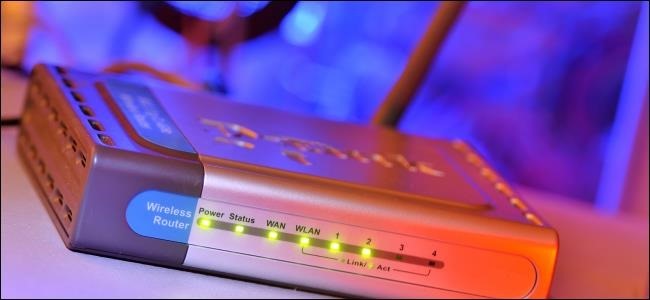
Your wireless router has a variety of useful options you can configure. These are practically hidden—you wouldn’t know these features exist unless you were digging through your router’s configuration pages. But they’re worth knowing about.
Bear in mind that different routers have different options.
You may not have all the options listed here on your own router. The options will also be in different places with different names.Accessing Your Router’s Web Interface

The vast majority of routers have web-based configuration pages that you can access in your web browser as long as you’re on the same local network as the router. To access your router’s web interface, you’ll first need to find your router’s local IP address. In general, you can just pop open the settings for your network connection and look for the “default gateway,” “gateway,” or “router” entry, but if you have trouble, check out our guide to finding router’s IP address on any computer, smartphone, or tablet.
Once you have the IP address, all you have to do is type it into your browser’s address bar and hit Enter. On most routers, you’ll be asked to log in with your username and password combination. If you don’t know these—or you’ve never changed them—your router is probably using its default credentials. Check your router’s manual or perform a web search for its model number and “default password.” If you’ve previously changed the password and can’t remember it, you can reset your router’s password to the default.
Once you’ve logged in, you can now browse your router’s web-based administration pages and configure its settings.
See Who’s Connected

Your router likely provides a way to see who’s connected to your wireless network. You can usually find this option on a general status page or in the wireless section, and the feature will be named something like “client list,” “connected devices,” or similar.
If you give your devices and computers meaningful names, this will help you verify that only approved devices are connected.
The router’s administration pages also show other information about the Internet connection, including your external IP address (the one the Internet sees), wireless security options, and more.
Wireless Channel

You can modify a variety of wireless network settings in your router’s web interface, including its wireless channel. Changing your router’s wireless channel can speed up your Wi-Fi. If many other wireless networks in your area are using the same wireless channel, interference will result in a slower connection.
Before changing your wireless channel, use something like Wi-Fi Analyzer for Android or the inSSIDer utility for Windows. They’ll scan the networks in the local area and find the best wireless channel with the least interference.
Extend an Existing Network

If you need to create a wireless network covering a large area, one router may not be enough. While you can use tools designed for the job—like range extenders or mesh networks—you can also use multiple wireless routers if you have extras around. But you don’t necessarily want to create separate wireless networks for each individual router. With the repeating feature found on many routers, you can have the router join itself to the main network, functioning as a repeater for that network. This allows…
The post 10 Useful Options You Can Configure In Your Router’s Web Interface appeared first on FeedBox.