


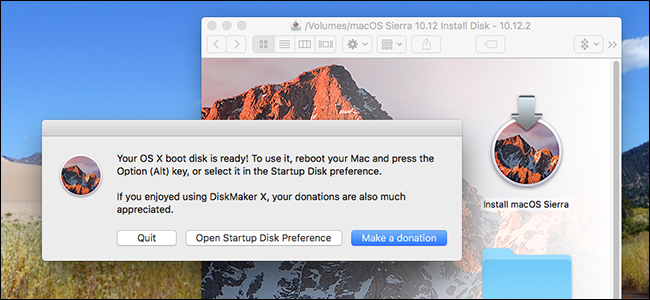
The Mac App Store is the default way to upgrade or install macOS, but it doesn’t work for everyone. Maybe you’ve got multiple Macs and a limited amount of bandwidth, and don’t want to download the entire operating system for every system. Or maybe you’re looking to install the operating system from scratch.
Whatever your reason, installing macOS from a USB drive isn’t hard. You just need a few things:
- An 8GB USB drive. This process will overwrite the entire drive, so back up anything stored on it. If your drive is larger than 8GB, and you’d like to use the rest of the drive for something else, you could use Disk Utility to partition the drive: just create an empty, 8GB partition for the installer.
- Access to at least one working Mac with access to the Mac App Store. This can be a friend’s machine if necessary.
That’s it! Once you have those things we can get started.
First, Download macOS From The Mac App Store
To begin, you need the installer for whatever version of macOS you want on a thumb drive. Head to the Mac App Store. If what you’re looking for is the latest version of macOS, search for that operating system and click the “Download” or “Install” button.
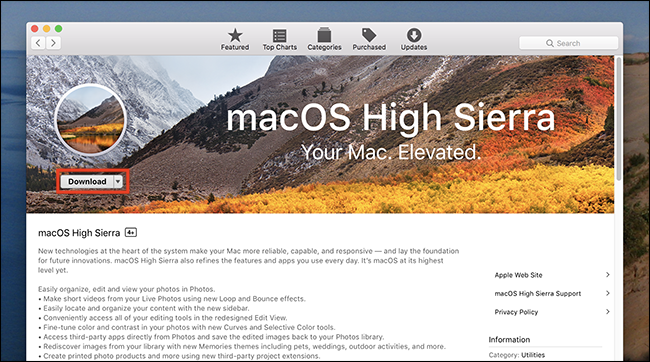
The download will take a while, so make sure your Mac is plugged in and has a consistent connection to the Internet. The installer will load when the process is done; simply close the window, then head to your Applications folder to confirm the installer is there.

If you don’t want the latest version of macOS, searching the App Store won’t help you.
Instead, you’ll have to head to the “Purchases” tab in the installer and scroll down until you find the version of macOS you want on your thumb drive.
You will only find versions you’ve previously downloaded here. Click the “Download” button to the left of the release you want to install, and your Mac will download it. Again, the installer will launch when the download is complete; close the window when this happens. We’re now ready to create our disk. There are two ways to do this: one with third party software, and another with the Terminal.
The Easy Way: With DiskMaker X
The simplest way to create a boot USB drive is to download DiskMaker X and use it to create your drive. Generally, the latest version supports only the latest version of macOS; if you want to…
The post How to Create a Bootable USB Installer for macOS High Sierra appeared first on FeedBox.